Is There an App Blocker You Can’t Bypass on iPhone?
Looking for an app blocker you cannot bypass on iPhone? No third-party blocker is impossible to bypass, but strict modes and physical friction can help.
How this was written: drafted with an AI model from sources the author chose and checked; last reviewed Oct 24, 2026.
Part of the digital wellbeing guide: what to do with the time you get back from your phone.
No. On iPhone, no third-party app blocker is impossible to bypass, because Apple’s Screen Time API lets the device owner remove the app or withdraw its permission. Apple documents that people using individual authorization can deauthorize an app in Settings, and that the usual protections against deleting an app do not apply. Apple’s Screen Time API documentation
In short
- A strict mode can stop you from changing a block while it is active, but it cannot make a self-imposed iPhone block permanent.
- A physical object, such as Brick’s NFC tag, adds a useful step because you must go get it before unblocking.
- The better question is not “Which blocker is strongest?” It is “Will I still have it installed in three weeks?” Apple’s Screen Time API documentation
Why can’t an iPhone app blocker be impossible to bypass?
Because an iPhone owner controls the device and the permission that lets a blocker shield apps and websites. Apple’s individual Screen Time authorization is designed for a person managing their own device, rather than for a parent managing a child’s device. Apple says that individual users can deauthorize the app through Settings, and that protections preventing app deletion and iCloud sign-out do not apply in this setup. Apple’s WWDC Screen Time API session
That does not mean a blocker is useless. It means the honest promise is friction, not absolute control. A block can interrupt an automatic reach, make a choice visible, or keep an app closed during the time you meant to work, rest, or be with someone.
This distinction matters when comparing tools. Marketing words such as “unbypassable,” “foolproof,” or “permanent” can describe how difficult a tool feels in ordinary use. They cannot change the fact that a person with control of their own iPhone can alter the setup. For a broader look at the choices involved in digital wellbeing, see our app blocker comparisons and guide to app blockers that actually work.
What does strict mode actually do?
Strict mode usually means you cannot edit, pause, or end a block through the app’s normal controls until a timer ends or a chosen condition is met.
The details differ by app. Opal calls its version Hard Mode and describes options with no unblocks or disabled resets during a rule. Opal’s help center describes those controls as preventing cancellation or breaks from its rules. ScreenZen says its lock mode protects against common loopholes and can prevent uninstalling, making limits harder to bypass. ScreenZen’s site makes that claim directly.
Jomo is especially clear about what its Strict Mode is meant to protect. Its help page says it can prevent deleting or changing a rule, uninstalling Jomo, and changing the iPhone’s date and time. It also offers different conditions, including a set time, an active session, a time range, or an always-on mode that requires a code or password to end. Jomo’s Strict Mode documentation
Those features are real boundaries inside the blocker. They are worthwhile when your usual workaround is opening the blocker and changing the rule in the moment. But they are not a guarantee that the setup can never be undone through the device owner’s settings or by removing the authorization the blocker needs.
A Strict Rule works in this narrower, honest sense: while the rule is on, you cannot turn it off or change it. That makes it a good fit for a planned work block or an evening boundary, not a claim that your own iPhone has become impossible to override.
Are physical blockers stronger than strict modes?
Physical blockers can be stronger for a specific problem: stopping an impulsive unblock when your phone is already in your hand.
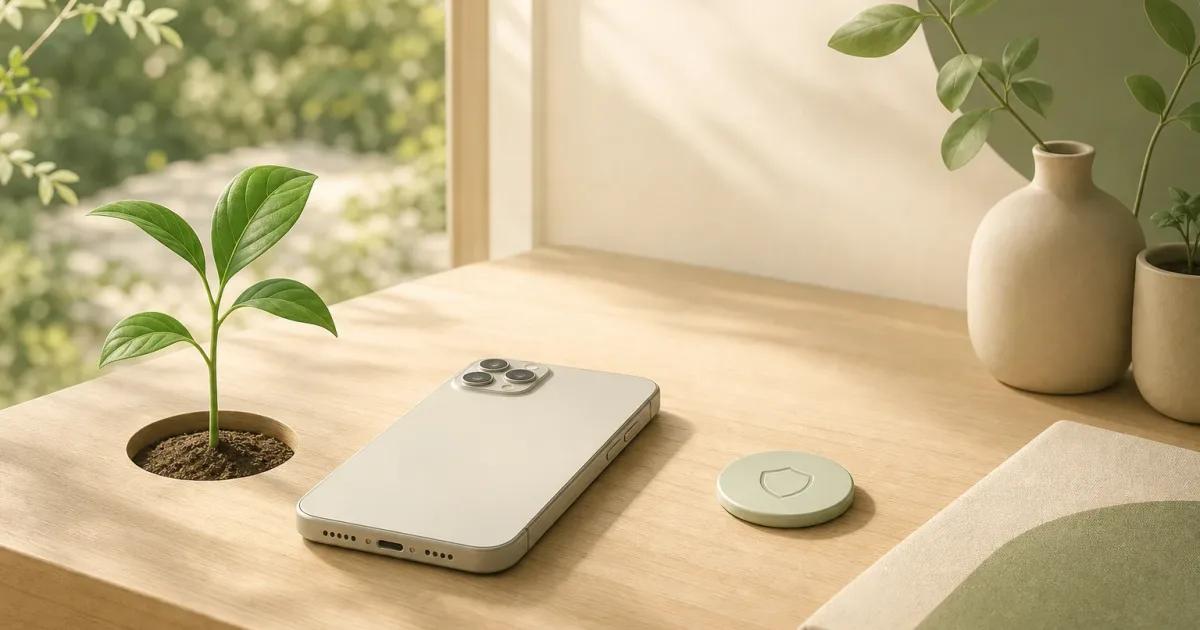
Brick pairs its app with a physical NFC device. You choose what to block, tap your phone to the Brick to activate a mode, and physically tap again when you want to change it. Brick describes this as adding friction because the object has to be present for the action. Brick’s Apple page explains the NFC setup and its intended role.
That is different from making a blocker technically impossible to remove. A tag cannot take away ownership of your phone, and it only helps if you put it somewhere inconvenient. Leave it beside you on the couch and it is just another button. Put it by the front door, in a drawer at work, or with someone you trust, and unblocking becomes a decision with a little distance around it.
A second device can create a similar separation without an NFC object. For example, you might leave your iPhone outside the bedroom and use a basic alarm clock, e-reader, music player, or another device for the small task you actually need. This is not app blocking at all. It is often the better answer when the problem is that the phone itself keeps ending up in the same place as the habit.
If you need a block that another person controls, built-in family controls may fit better than a self-control app. Apple treats child authorization differently from individual authorization, including protections intended to prevent a child from circumventing parental controls. That is a different arrangement, with a parent or guardian involved, not a stricter version of self-blocking. Apple’s Family Controls overview
What can I do today without installing anything?
Put your phone in a different room before the activity you want to protect, then write the next action on paper.
For example, before dinner, studying, or getting ready for bed: place the phone on a charger outside that room. Write, “If I want to check my phone, I will stand up, walk to it, and decide what I need before I unlock it.” Then start the activity. There is no timer, score, or app to negotiate with.
This is deliberately plain. It does not solve every use case, especially if you need your phone for work, safety, caregiving, navigation, or accessibility. But it tests whether distance is enough before you spend time tuning a complicated blocking system. If you want more practical changes around the device itself, read How to Focus When Your Phone Is in the Room and How to Stop Checking Your Phone So Much.
Which blocker will you still have installed after the first hard week?
The best blocker is usually the one whose boundary matches the moment you are trying to protect, and whose setup you can tolerate after the initial motivation wears off.
Choose a strict timer or rule when you already know the time window you want protected and do not want to renegotiate it during that window. Choose a physical tag when getting up to retrieve the tag is the exact friction you need. Choose a pause-based tool when you do sometimes want access, but want a moment to decide before opening an app. Choose no blocker at all when moving the phone away is simpler and more reliable.
Try one boundary before building a whole system. Pick the apps or sites that most often pull you away from something you intended to do, decide when access is off limits, and keep essential communication available. A smaller setup is easier to notice, test, and keep.
Champ offers a free Guard for the apps you choose, with a reset before a Guarded app opens, and its Rules can be made Strict when you need a planned block that stays in place.
If you want a blocker that leaves room for a deliberate choice, download Champ.
Frequently asked questions
Is there an app blocker you cannot bypass on iPhone?
What is the strictest kind of iPhone app blocker?
Does deleting an app blocker always end the block?
Do NFC app blockers work better?
Sources
- Apple. (2022). What’s new in Screen Time API. Apple Developer
- Apple. Family Controls. Apple Developer
- Jomo. (2026). What is Strict Mode?. Jomo Help Center
- Opal. (2026). How and why should I subscribe to Opal Pro?. Opal Help Center
- ScreenZen. (2026). ScreenZen, Stop Mindless Scrolling & Reclaim Your Time. ScreenZen
- Brick. (2026). Brick for Apple. Brick
Screen time guides and tools
One idea about screen time, every two weeks.
The Pause: a short note from the person who builds Champ. Occasional, not daily. Unsubscribe any time.