iPhone Screen Time Chart: What the Gray Part Means
What the gray part of iPhone Screen Time means, and how to read the daily chart and the app list under it without guessing.
How this was written: drafted with an AI model from sources the author chose and checked; last reviewed Oct 25, 2026.
Part of the digital wellbeing guide: what to do with the time you get back from your phone.
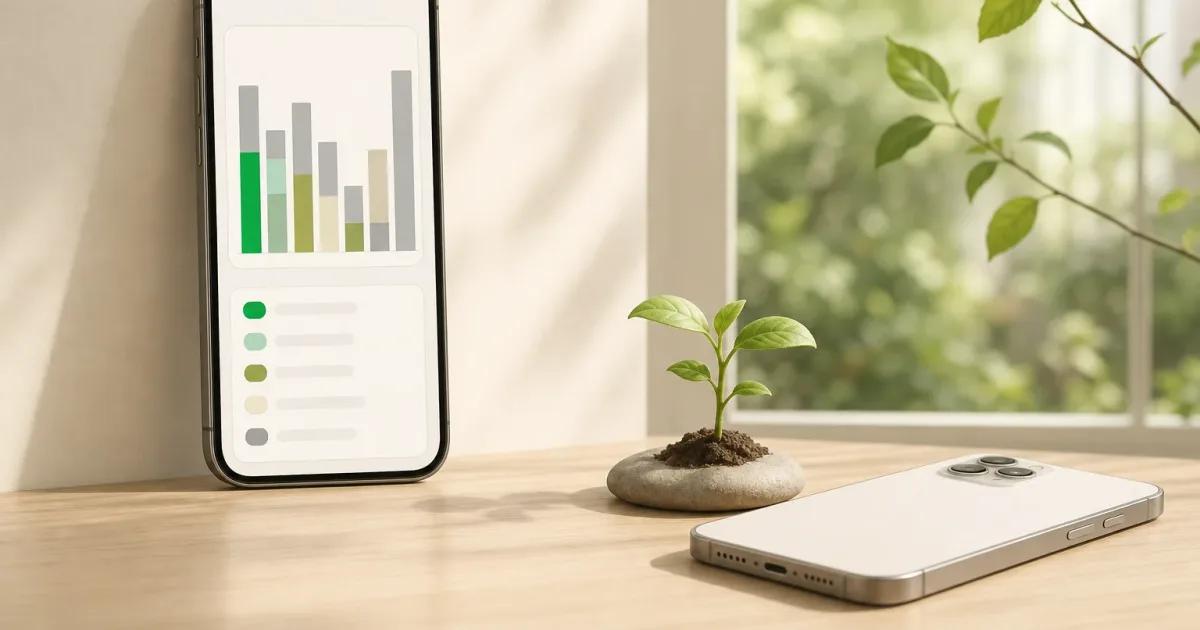
The gray part of Screen Time means activity that does not fit into one of Apple’s app categories. It is not a special warning, a measure of wasted time, or proof that something is wrong with your iPhone.
In short:
- Apple says gray activity is Screen Time use that does not fit a category.
- Colored parts of the chart show categories Apple assigned to your apps and websites.
- The chart is a starting point. Check the app list, pickups, and notifications before drawing a conclusion.
What do the colors in the Screen Time chart mean?
The colored sections show categories that Apple automatically assigns to your app and website activity. Apple gives examples such as Entertainment and Creativity, and the category names can be more useful than the color itself because the colors are only a visual key. Apple’s Screen Time guide calls this a summary of your app and website activity.
Think of the bar as a compact answer to one question: where did this device time go? A category can include several apps and websites, so a large colored segment does not tell you which specific app took the time. For that, move from the chart to the list below it.
Apple lets you switch between daily and weekly views, and you can also select a device when activity is shared across your Apple devices. That distinction matters. A weekly view is useful for spotting repeat patterns, while a daily view is better for remembering what actually happened that day. Apple documents both views and the device selector in its Screen Time summary instructions.
If you need the route to the report rather than an explanation of the chart, read how to check Screen Time on iPhone. It covers the basics without treating the total as a score.
What does the gray part of Screen Time mean?
The gray part means Screen Time activity that does not fit into an Apple category. Apple documents this directly: activity that does not fit a category may appear gray in the Screen Time summary. Read Apple’s note about gray activity.
That answer is simpler than many search results make it sound. Gray does not automatically mean “other apps,” hidden use, or a browser problem. It means the activity shown there was not placed into one of the categories displayed by Screen Time.
This is also why a search for the gray part of Screen Time can land you on our grayscale iPhone guide, even though it is a different subject. Grayscale changes the colors on your display. The gray segment in Screen Time is a reporting label inside Apple’s chart.
The practical move is to treat gray as a prompt to look closer, not a verdict. Look at the apps and websites listed for the same day, then compare them with what you remember doing. The chart gives a summary. The list provides the detail you can act on.
How do I read Most Used, Pickups, and Notifications?
Use Most Used to see the apps and websites behind the total, Pickups to see how often you picked up your devices, and Notifications to see which apps sent the most alerts. Apple describes Screen Time reports as showing app and website use, pickups, and apps that send the most notifications. Apple’s guide explains these report labels.
Start with Most Used when you want to understand time. A familiar app near the top may reflect something intentional, such as reading, navigation, messaging, or a work task. An unfamiliar entry deserves a closer look, but it still is not evidence of a problem by itself.
Pickups answer a different question: how often did you begin using the device? A pickup does not tell you how long you stayed, why you picked it up, or whether the use was useful. Still, it can reveal a pattern that a total time number misses, such as repeatedly checking the phone for a few moments.
Notifications are about incoming prompts, not attention or self-control. If one app sends many alerts, adjusting that app’s notification settings can be more direct than setting a broad screen-time limit. Our notification audit walks through how to keep messages from people while cutting automated prompts that do not need an immediate response.
A useful rule is to ask one plain question of each label. For Most Used: “Was this time expected?” For Pickups: “What was I usually checking for?” For Notifications: “Which alerts genuinely need to interrupt me?” That turns a dashboard into a small review instead of a reason to feel guilty.
Why can a Screen Time day look wrong?
A Screen Time day can look surprising when the report combines devices, audio keeps playing while you do something else, or the device clock or time zone changes. The best response is to check the report’s scope and context before assuming the total is an exact record of time spent looking at the screen.
First, check Share Across Devices. When it is on, Apple says Screen Time settings and usage data can be shared across your iPhone, iPad, and Mac signed in to the same Apple Account, and you can view combined activity. Select an individual device in the report if you want to separate that device from the rest. Apple documents how shared reports work.
Second, be careful with audio. Music and other audio can be controlled from the Lock Screen or while you use another app, so time associated with an audio app may not match your memory of actively looking at it. Apple does not explain exactly how every kind of background audio is counted in Screen Time, so it is better not to guess from one unusual total. Apple documents audio controls from the Lock Screen and other apps.
Third, consider a clock or time-zone change. Screen Time is organized around days, so a manually changed clock, travel, or a device that has not updated its time zone can make a day boundary less intuitive. Apple recommends automatic date and time settings, including automatic time-zone updates when available. See Apple’s date and time guidance.
If one day still looks implausible, do not build a strict plan around that one number. Check the next few days, compare individual devices, and look for a repeated pattern. A pattern is more useful than an argument with a chart.
What should I do with what I find today?
Pick one app or website from Most Used that you want to open more deliberately. Before you change any setting, write one sentence in Notes: “I will use this for the thing I opened it to do, then close it.” The next time you open it, read the sentence first.
That is enough for today. You do not need to delete every distracting app, and you do not need to make the total perfect. If that one sentence helps you notice an automatic opening, keep it. If it does not, choose a different boundary, such as moving the app off your Home Screen, turning off its nonessential alerts, or setting an iPhone limit.
If you want a clearer view of your own estimate over a longer period, use the screen time calculator. It can be useful alongside Screen Time when you want to compare a typical day with a week that felt unusually busy.
For a boundary at the exact moment an app opens, screen-time blocking can be a better fit than repeatedly checking a chart. Champ’s free Guard can shield the apps you choose and websites selected in Apple’s picker; a Guarded app offers a reset, while tapping a website shield closes the site.
Screen Time is one part of digital wellbeing, not a diagnosis of whether you use your phone well or badly. Use the chart to notice a pattern, choose one small change, and leave the rest alone until you have a reason to revisit it.
You can download Champ for iPhone and iPad.
Frequently asked questions
What does the gray part of Screen Time mean on iPhone?
Does gray Screen Time mean background activity?
Why does my Screen Time total not match what I remember using?
What is the difference between Pickups and Notifications in Screen Time?
Sources
- Apple. (2026). Get started with Screen Time on iPhone. Apple Support
- Apple. (2026). If you can't change the time or time zone on your Apple device. Apple Support
- Apple. (2026). Play music on iPhone. Apple Support
Screen time guides and tools
One idea about screen time, every two weeks.
The Pause: a short note from the person who builds Champ. Occasional, not daily. Unsubscribe any time.